Simulating slipping faults with Abaqus
To run a simulation with a model that has slipping faults, make sure the following requirements are met:
- You have a 3D volume mesh containing faults with split nodes. Use the Mesh options form to select the faults.
- You have an Abaqus case, created with the 3D mesh model mentioned above (simulate > Abaqus > Create Case).
You can check if a fault has split nodes using the Inspector. In the JewelExplorer, select the fault under the 3D Mesh. Open the Inspector (Workspace > Panes > Inspector or Ctrl+F3), select the Property Inspector  and go to the Data management section. Moving (Split) is set to True.
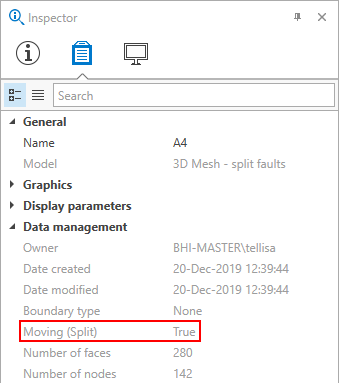
You can use the information in the Inspector to check if your fault has split nodes. click to enlarge
To model fault slip with Abaqus
- Follow the complete Abaqus workflow (simulate > Abaqus > Workflow).
-
On the Interaction properties tab, which is listed in the Simulation Case View that has the name <your Abaqus case> (Input file), the input parameter for the friction behavior is listed per fault.
- Run the simulation, simulate > Abaqus > Run Simulations.
- Visualize the results. The best way to do so, is to display only the moving faults of your 3D mesh with the SurfaceDisplShearRes property selected. This property indicates the relative displacement of the fault in shear. Initially, the results are displayed on the nodes.
- The results can be visualized on both sides of a fault, or on just one side. Use the context menu to change the display settings.

On the interaction properties tab you can review the parameter settings for the friction behavior per fault. click to enlarge
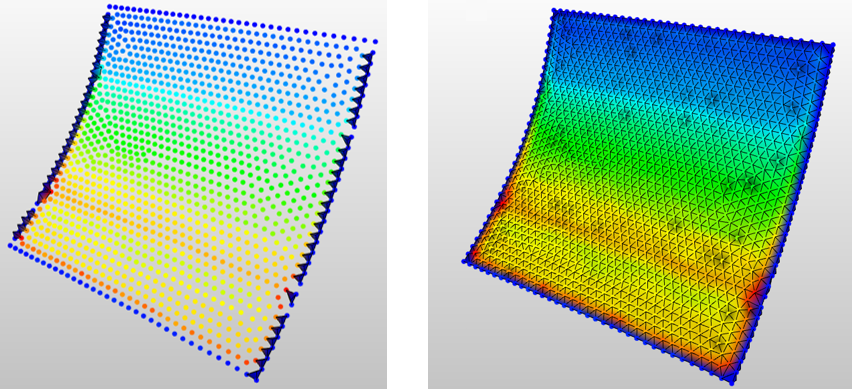
Visualize the results on the nodes only or on the fault surface. click to enlarge
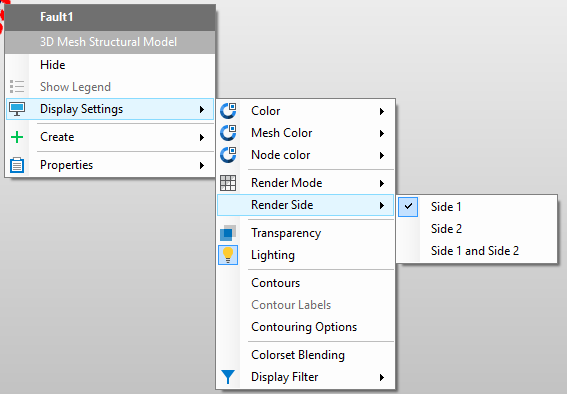
Visualize the results either on both sides of the fault or on one side of the fault only. click to enlarge